Who this guide is for:
This guide is for System Administrators who create and manage automated workflows.
Requires 'System Admin' role.
Overview
This guide explains how to configure the User Profile Field Change trigger in Workflow Builder. The trigger allows a workflow to start when selected Core HR information on a user’s profile is changed through the front end or mobile app.
How User Profile Field Change Works
The User Profile Field Change trigger starts a workflow when a selected field on a user’s profile is edited.
You can scope the trigger to one or more fields from Core HR areas such as personal information, job details, compensation and emergency contact information. You can also control which type of change starts the workflow and who must have made the change.
The trigger can fire when:
- Any change is made to the selected field.
- The field changes to a specific value.
- The field is cleared.
- The field changes from empty to any value.
You can also filter the trigger based on who made the change, including the employee, an administrator, the user’s line manager or an API/integration.
How to Set Up User Profile Field Change
- Go to Workflow Builder.
- Create a new workflow or open an existing workflow that you want to edit.
- Add the User Profile Field Change trigger.
- Select the Core HR field or fields that should start the workflow when changed.
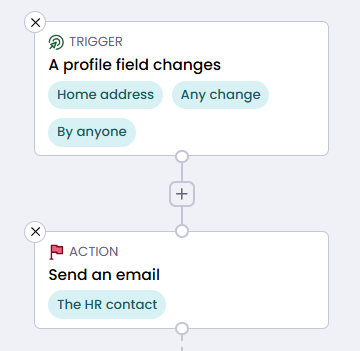
Available fields can include information from:
- Personal information
- Job details
- Compensation
- Emergency contacts
- Choose the type of change that should trigger the workflow:
- Any change
- Changes to a specific value
- Field is cleared
- Changes from empty to any value
- If you select Changes to a specific value, enter the required value exactly as it should appear.
Warning: The value must be typed manually. Check spelling and formatting carefully, as a typo may prevent the workflow from triggering as expected.
- Configure Changed by to specify who must make the profile change. Select the appropriate option:
- Anyone
- The employee themselves
- An admin
- The user’s line manager
- An API/integration
- Complete any additional workflow conditions and actions required.
- Save and activate the workflow using the available Save or workflow activation controls.
Additional Information
Requires 'System Admin' role.
Warning: Changes made through the admin panel do not activate the User Profile Field Change trigger, regardless of the selected 'Changed by' option. The change must be made through the front end, mobile app or, where configured, an API/integration.
For future-dated job or salary changes, the workflow triggers when the change is entered into the system. It does not wait until the future-dated change becomes effective.
When using Changes to a specific value, use consistent values and check for spelling differences before activating the workflow.
If several fields can produce the same outcome, consider including them within the same trigger where appropriate to simplify workflow maintenance.
Tip: Use the search function within the platform to quickly find features or settings.