Overview:
Workflow Builder lets you set up automated alerts and notifications that fire based on dates in edays – so the right person gets reminded at the right time, without anyone having to remember to do it manually.
This guide covers what you can do with date-based triggers. Whether it’s reminding employees about expiring carryover, celebrating work anniversaries, or alerting HR when a profile is updated, there’s a lot you can automate with the triggers available on a standard edays setup.
This guide covers the date-based triggers available on a standard edays account and the workflows we recommend setting up. If you’d like access to additional triggers such as probation dates, visa expiry, or leaving date, these are part of the Core HR module – contact customersuccess@e-days.com to find out more.
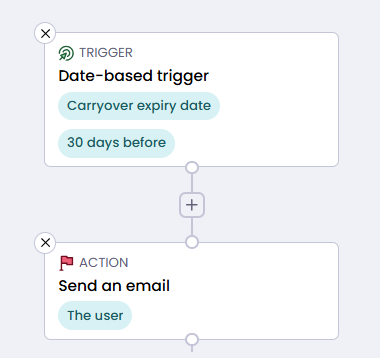
How to create a new workflow:
- Under Admin Tools > click Workflow Builder
- Click Add New Workflow in the top right corner
- Select from any triggers, conditions and actions. You can mix and match these to create workflows that suit your processes.
- Save and activate the workflow when you’re ready for it to start running.
For more information on how to build new workflows in the Workflow Builder, there’s a guide available here.
Example Workflows We Recommend:
Leave & Entitlements
→ Example: Carryover expiry reminder Use the Carryover expiry date trigger with a ‘Before’ timing of 14 days. This sends employees a reminder two weeks before their carried-over leave is due to expire, giving them time to book it before it’s lost. You can also set a second workflow with a 7-day reminder as a follow-up nudge. |
→ Example: TOIL expiry reminder Use the TOIL expiry date trigger with a ‘Before’ timing of 7 days to remind employees to use any remaining time off in lieu before it expires. This is particularly useful where TOIL has a rolling expiry window and employees may not be tracking it closely. |
→ Example: Long service award – entitlement grant Use the Work anniversary trigger with an ‘After’ timing of 0 (or set to ‘At time of’) and configure the action to award additional leave entitlement. For example, award one extra day’s annual leave on an employee’s 5th work anniversary, in line with your long service policy. You can set different workflows for different anniversary milestones. |
→ Example: Sickness policy entitlement reset Use the Leave year start date trigger set to ‘At time of’ with an entitlement award action to automatically grant a sickness allowance at the start of each leave year. This removes the need to manually update entitlements when the year rolls over. |
→ Example: Specific-date entitlement award Use the Specific date trigger to award an entitlement on a fixed date – useful for one-off situations such as a company-wide wellbeing day, a bank holiday substitute, or an entitlement uplift that applies from a particular date in your policy. |
Employee Milestones & Recognition
→ Example: Work anniversary message Use the Work anniversary trigger set to ‘At time of’ to send an automated recognition message to the employee (and optionally their manager) each year on their employment start date anniversary. You can tailor the message for specific milestones – for example, a different message at 1 year, 5 years, and 10 years – using conditions to filter by length of service. |
→ Example: Birthday greeting Use the Birthday trigger set to ‘At time of’ to send an automated birthday message to each employee on their birthday. Because this is a recurring trigger, it will fire each year automatically without any manual input. |
→ Example: Leave year start reminder Use the Leave year start date trigger set to ‘At time of’ to send employees a prompt at the start of their new leave year – reminding them of their entitlement, any carry-over balance, or any booking deadlines for the year ahead. |
Profile Updates & Data Changes
As well as date-based triggers, Workflow Builder also supports a Profile Field Changes trigger, which fires whenever a specific field on an employee’s profile is updated. This is separate from date-based triggers but pairs well with them for keeping data accurate and keeping the right people informed.
→ Example: Emergency contact update notification Use the Profile Field Changes trigger and select the Emergency Contact fields. Set the condition to ‘Any change is made’. When an employee updates their emergency contact details, the workflow automatically notifies HR – useful for keeping records current without relying on people to report changes separately. |
→ Example: Home address change alert Use the Profile Field Changes trigger on the Home Address field. When an employee changes their address, automatically notify payroll so they can update any location-dependent records, tax codes, or benefits. This removes a common manual step that can otherwise slip through the cracks. |
Separate guide: For a full walkthrough of the Profile Field Changes trigger, including how to configure the field selector and conditions, see the Workflow Builder: Profile Field Changes guide in Further Reading. |
How Date-Based Triggers Work:
When setting up a workflow, the date-based trigger tells the system when to run it. You choose a date to base it on and, for most triggers, you can also specify how far before or after that date the workflow should fire.
Date triggers are organised into three types:
- One-time – fires once on a specific date and won’t repeat.
- Recurring – fires on a repeating schedule, such as every year on someone’s birthday or on a set day each month.
- Event-based – fires when a particular event occurs, such as carryover or TOIL reaching its expiry date.
Trigger | When it fires | Before/After timing? |
One-time – fires once on the specified date | ||
Specific date | Fires on the exact date you specify manually. Useful for fixed one-off events or policy dates. | No |
Recurring – fires on a repeating schedule | ||
Any day | Fires every day. Typically used with conditions to narrow down which employees it applies to. | No |
Day of the week | Fires on a specified day every week, e.g. every Wednesday. | No |
Recurring date Renamed | Previously ‘Day of the month’. Fires on a specific date each month, e.g. the 15th of every month. | No |
Leave year start date | Fires on the leave year start date set on the employee’s profile. | Yes |
Work anniversary Renamed | Previously ‘Employment start date’. Fires each year on the anniversary of the employee’s start date. | Yes |
Birthday Renamed | Previously ‘Birth date’. Fires each year on the employee’s birthday. | Yes |
Event-based – fires when a system event occurs | ||
TOIL expiry date ★ New | Fires on the morning that an employee’s time off in lieu is due to expire. | Yes |
Carryover expiry date ★ New | Fires on the morning that an employee’s carried-over leave is due to expire. | Yes |
Before and After Timing
For triggers that support it, you can offset the workflow from the trigger date using Before or After timing. This lets you send a reminder ahead of time or a follow-up after the event.
- At time of – the workflow fires on the morning of the trigger date itself. This is the default.
- Before – the workflow fires a set number of days or months before the trigger date.
- After – the workflow fires a set number of days or months after the trigger date.
Note: The Before/After timing option is not available for Specific date, Any day, Day of the week, or Recurring date triggers. For these, the workflow always fires at the time of the trigger. |
Things to know:
- Triggers fire in the morning – all date-based triggers run on the morning of the calculated date. There is no option to specify an exact time of day.
- Recurring triggers repeat automatically – triggers like Work anniversary and Birthday will fire every year without any additional setup, as long as the workflow is active.
- Use conditions to target the right people – most workflows above work best when combined with conditions. For example, filter by department, length of service, or employment type to make sure the right people receive the right message.
- Renamed triggers – if you have existing workflows using ‘Employment start date’, ‘Birth date’, or ‘Day of the month’, these have been renamed to Work anniversary, Birthday, and Recurring date respectively. Your existing workflows will continue to run as normal – no changes are needed.
- Core HR unlocks more – triggers such as probation end date, visa/permit expiry, leaving date, and job/compensation effective dates are available as part of the Core HR module. Speak to your Customer Success Manager to find out more.
Further Reading:
For more on setting up and managing workflows in edays, these guides may be helpful. Or if you need assistance configuring any of these, please contact customersuccess@e-days.com.