Overview:
As part of our Core HR module, you can use the Workflow Builder in edays to set up alerts and notifications to fire at exactly the right moment - whether that’s reminding a manager before an employee’s probation date is due, sending a welcome message on someone’s first day, or triggering an offboarding checklist when a visa is about to expire.
This guide focuses on date-based triggers within Workflow Builder, which have been significantly expanded as part of the Core HR module. You can now automate around a much wider range of key dates in an employee’s lifecycle, and you can specify whether something should happen a set number of days, months, or years before or after that date.
Note: If you require more workflows, contact customersuccess@e-days.com to request Workflow Builder Pro. To run most of these example workflows, you do need to have Core HR enabled on your system.
How to create a new workflow?
- Under Admin Tools > click Workflow Builder
- Click Add New Workflow in the top right corner
- Select from any triggers, conditions and actions. You can pick and choose to create workflows that suit your processes.
For more information on how to use the Workflow Builder, there's guides available here.
Our Example Workflows We Recommend:
Onboarding & New Starters
→ Example: First-week check-in reminder Use the Employment start date trigger (one-time) with an ‘After’ timing of 7 days. This sends a reminder to HR or the line manager one week after the employee starts, prompting a first-week catch-up conversation. |
→ Example: Welcome email on day one Use the Employment start date trigger (one-time) set to ‘At time of’. The workflow fires on the morning of the employee’s start date – perfect for an automated welcome message. |
→ Example: Profile Field Changes (Separate guide) Use the Profile Field Changes trigger (Select Home Address field) set to 'Any Change is Made'. The workflow fires if an employee updates their Home Address at any time – perfect for letting payroll know about changes such as this. |
Offboarding & Leavers
→ Example: Offboarding checklist reminder Use the Leaving date trigger with a ‘Before’ timing of 7 days. This sends a reminder to HR and the manager a week before the employee leaves, giving them time to complete offboarding tasks before the final day. |
→ Example: Handover prompt Use the Leaving date trigger with a ‘Before’ timing of 14 days to prompt a handover conversation between the leaver and their team, or remind HR to download any data associated with them before deletion. |
Probation & Milestones
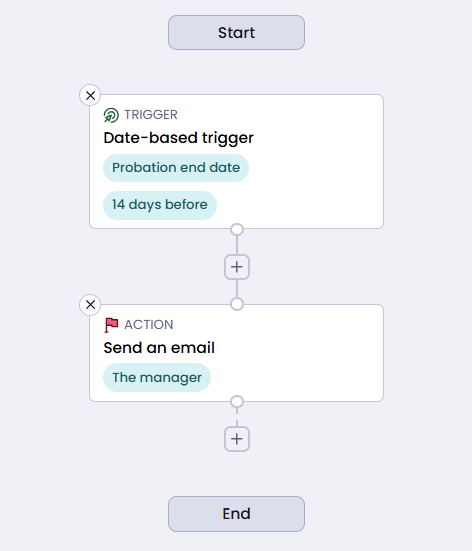
→ Example: Probation review reminder Use the Probation end date trigger with a ‘Before’ timing of 14 days to automatically remind the manager to schedule a probation review meeting in good time. |
→ Example: Work anniversary recognition Use the Work anniversary trigger set to ‘At time of’ to send an automated recognition message each year on the employee’s start date anniversary. |
Compliance & Right to Work
→ Example: Visa expiry warning Use the Visa/permit expiry trigger with a ‘Before’ timing of 30 days to alert HR in advance of an employee’s visa expiring, giving time to request updated documentation. |
→ Example: TOIL expiry reminder Use the TOIL expiry date trigger with a ‘Before’ timing of 7 days to remind employees to use any remaining TOIL before it expires. |
Pay & Role Changes
→ Example: Notify payroll of a salary change Use the New compensation effective date trigger set to ‘At time of’ to automatically notify payroll on the morning a new salary record becomes active. |
→ Example: Confirm a role change Use the New job effective date trigger set to ‘At time of’ to send a confirmation to the employee on the morning their new job title or role takes effect. |
How date based triggers work:
When setting up a workflow in Workflow Builder, the date-based trigger is what tells the system when to run it. You pick a date to base it on, and optionally how far before or after that date the workflow should fire.
The date selector is now organised into three categories, which reflects how each type of trigger behaves:
- One-time – fires once, on or around a specific date. Won’t repeat.
- Recurring – fires on a repeating schedule, such as every year on someone’s birthday or every month on a set date.
- Event-based – fires when a particular event occurs in the system, such as a new job record becoming active or a probation period ending.
Trigger | When it fires | Before/After timing? |
One-time – fires once, on or around the specified date | ||
Specific date | Fires on the exact date you specify manually. | No |
Employment start date ★ New | Fires once on the morning of the employee’s start date. | Yes |
Continuous start date ★ New | Fires once on the morning of the employee’s continuous start date. | Yes |
Date of birth ★ New | Fires once on the morning of the employee’s date of birth. | Yes |
Recurring – fires on a repeating schedule | ||
Any day | Fires every day. | No |
Day of the week | Fires on a specified day every week, e.g. every Wednesday. | No |
Recurring date Renamed | Previously ‘Day of the month’. Fires on a specific date each month, e.g. the 15th. | No |
Leave year start date | Fires based on the leave year start date on the employee’s profile. | Yes |
Work anniversary Renamed | Previously ‘Employment start date’. Fires each year on the anniversary of the employee’s start date. | Yes |
Continuous work anniversary ★ New | Fires each year on the anniversary of the employee’s continuous start date. | Yes |
Birthday Renamed | Previously ‘Birth date’. Fires each year on the employee’s birthday. | Yes |
Event-based – fires when a system event occurs | ||
New job effective date ★ New | Fires on the morning a future-dated job record becomes active for a user. | Yes |
New compensation effective date ★ New | Fires on the morning a future-dated compensation record becomes active. | Yes |
Probation end date ★ New | Fires on the morning of the employee’s probation end date. | Yes |
Visa/permit expiry ★ New | Fires on the morning of the employee’s visa or work permit expiry date. | Yes |
TOIL expiry date ★ New | Fires on the morning that time off in lieu is due to expire. | Yes |
Leaving date ★ New | Fires on the morning of the employee’s leaving date. | Yes |
Things to know:
- Triggers fire in the morning – all date-based triggers run on the morning of the calculated date. There is no option to specify an exact time of day.
- One-time triggers won’t repeat – if you use a one-time trigger such as Employment start date or Date of birth, the workflow will only run once for each user. If you need it to repeat annually, use the recurring equivalent (Work anniversary or Birthday).
- Future-dated records – event-based triggers such as New job effective date and New compensation effective date only fire when the record actually becomes effective. Creating the future-dated record in edays is what schedules the trigger.
- Renamed triggers – if you have existing workflows using ‘Employment start date’, ‘Birth date’, or ‘Day of the month’, these have been renamed to Work anniversary, Birthday, and Recurring date respectively. Your existing workflows will continue to work as before – no action is needed.
Further Reading:
For more on setting up and managing workflows in edays, these guides may be helpful. Or if you need assistance configuring any of these, please contact customersuccess@e-days.com.