Overview:
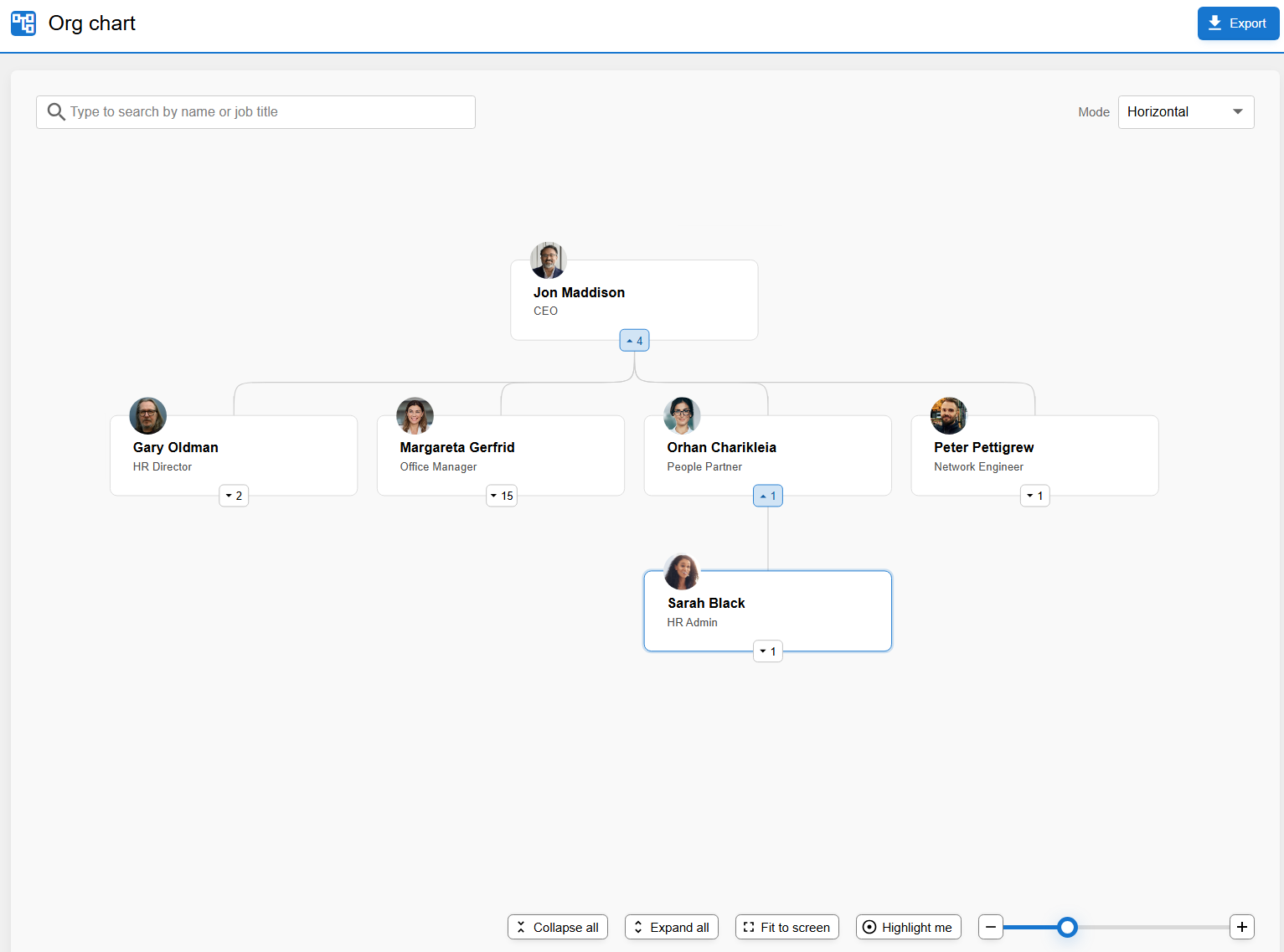
The org chart is a dynamic and live view of your current workforce, showcasing the organisational structure based on authorisers and managers in edays. By default, this view will be based on your primary authoriser - however you have the power to override this and assign a 'Manager' per profile if required.
How the Org Chart works:
- You can search for any individual or job title in the top left corner of the screen
- You have various options available such as Mode (Horizontal or Compact), Collapse all or Expand all, Fit to Screen or Highlight me.
- Once you have created a view you like, you can click Export in the top right hand corner to save a PDF, PNG or SVG format of the Org Chart. This will create an export based on the exact view in your current screen.
Note: The Org chart is included in our Core HR Module. Contact customersuccess@e-days.com to request Core HR.
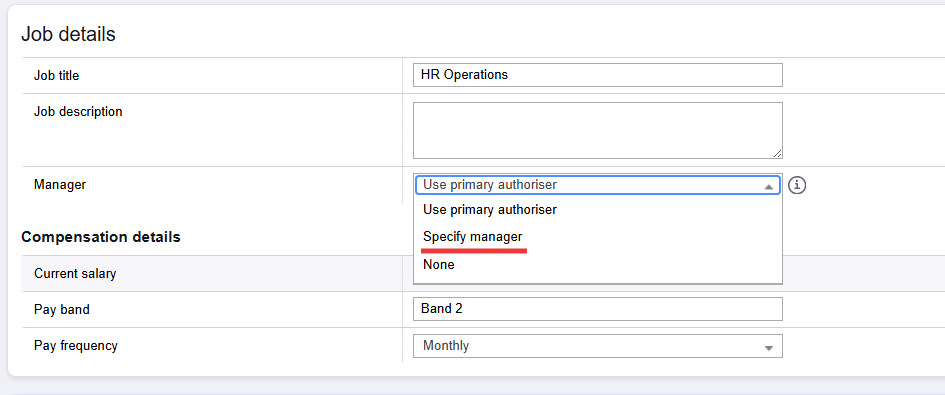
To specify a user's manager in the system:
- Go to Admin Panel > Users > Edit User
- On their profile, scroll down to Job details and select Manager
- If you select Specify manager, you can choose who they report to on the org chart, instead of their primary authoriser.