Overview:
As part of our Core HR module, you can use Assignments in edays to send out important policies and documents to your teams, in order to ensure they have read and understood the document, policy or task, with a declaration.
You can create an assignment from any document uploaded to the portal in edays, as well as configure automatic reminders and keep a clear audit trail on who has completed these assignments or not.
Note: Assignments is a paid feature in our Core HR module. Contact customersuccess@e-days.com to request Core HR.
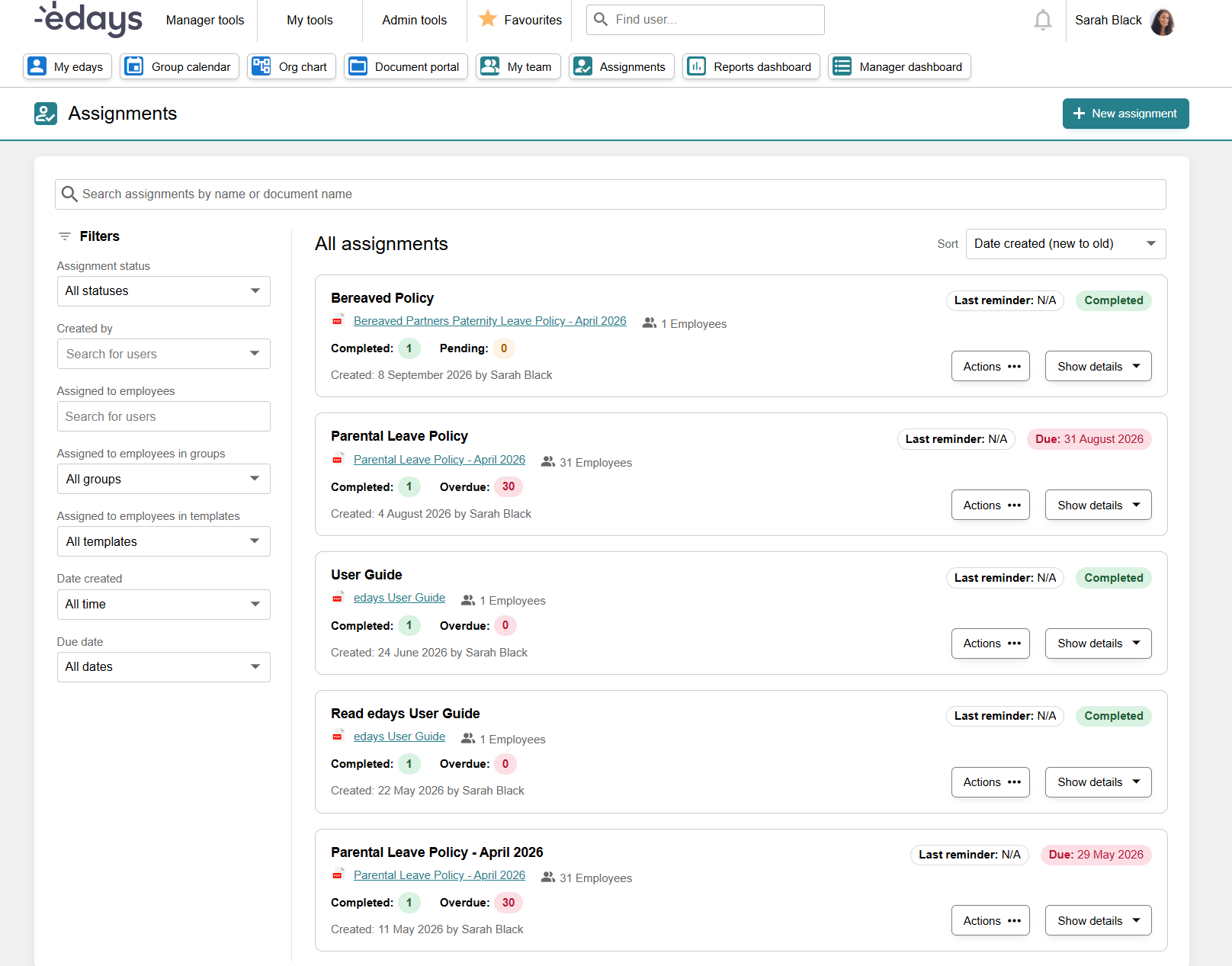
How to create a new assignment
Go to Manager Tools > Assignments
Click + New Assignment.
- Click Assign document, and from here you can give the assignment a name, select who to assign to, assign a due date, enable automatic reminders, and adjust the relevant messages for your employees.
- Click Create assignment to assign the document to your selected groups/people.
Managing Assignments
Clicking the actions button on any existing assignment will give you a list of options:
Send a manual reminder - sends an email reminder to all incomplete users on the assignment
Edit assignment - rename, or adjust the setup for the assignment such as who it's applied to, or the text included with the declaration text
Close assignment - this will end the assignment and any future reminders or actions will be stopped.
Export List - this allows you to export to a .csv file a list of users, with their relevant status and any audit history.
Delete assignment - this will remove all data associated with the assignment. The original document will remain in the document portal.
How to create a new assignment (From the Document Portal)
- Go to My Tools > Document Portal
- Click ... under the Actions column next to a document.
- Click Assign document, and from here you can give the assignment a name, select who to assign to, assign a due date, enable automatic reminders, and adjust the relevant messages for your employees.
- Click Create assignment to assign the document to your selected groups/people.
- Any created assignments here can be viewed in the Assignments section of edays
For more information on using the Document Portal, we have a guide here.