Overview:
As part of our Core HR module, there will be some additional role permissions that you need to enable. This guide should give you a better understanding of what these permissions are, what they do, and how they work with your edays.
We recommend reviewing your roles if you are going to be storing any sensitive data, as there's a specific permission called 'Sensitive data viewer' which will control if you can see compensation and salary history in the system. Typically this is reserved for anyone working in HR or payroll.
This will also depend on 'who' you can see in the system, which are controlled by User Views.
Setting up your roles:
Go to Admin Tools > Admin Panel > Global > Roles
You will see a list of existing roles on your edays system. Here you can create new, or edit existing roles.
- Click the advanced tab on the role will open up more details, and show you the specific permissions enabled or disabled on the role.
- The roles associated with Core HR include Document Portal Admin, Staff Record Information Tab & editor, Sensitive data viewer, Document Portal, Assignments admin, Assignments & Org Chart.
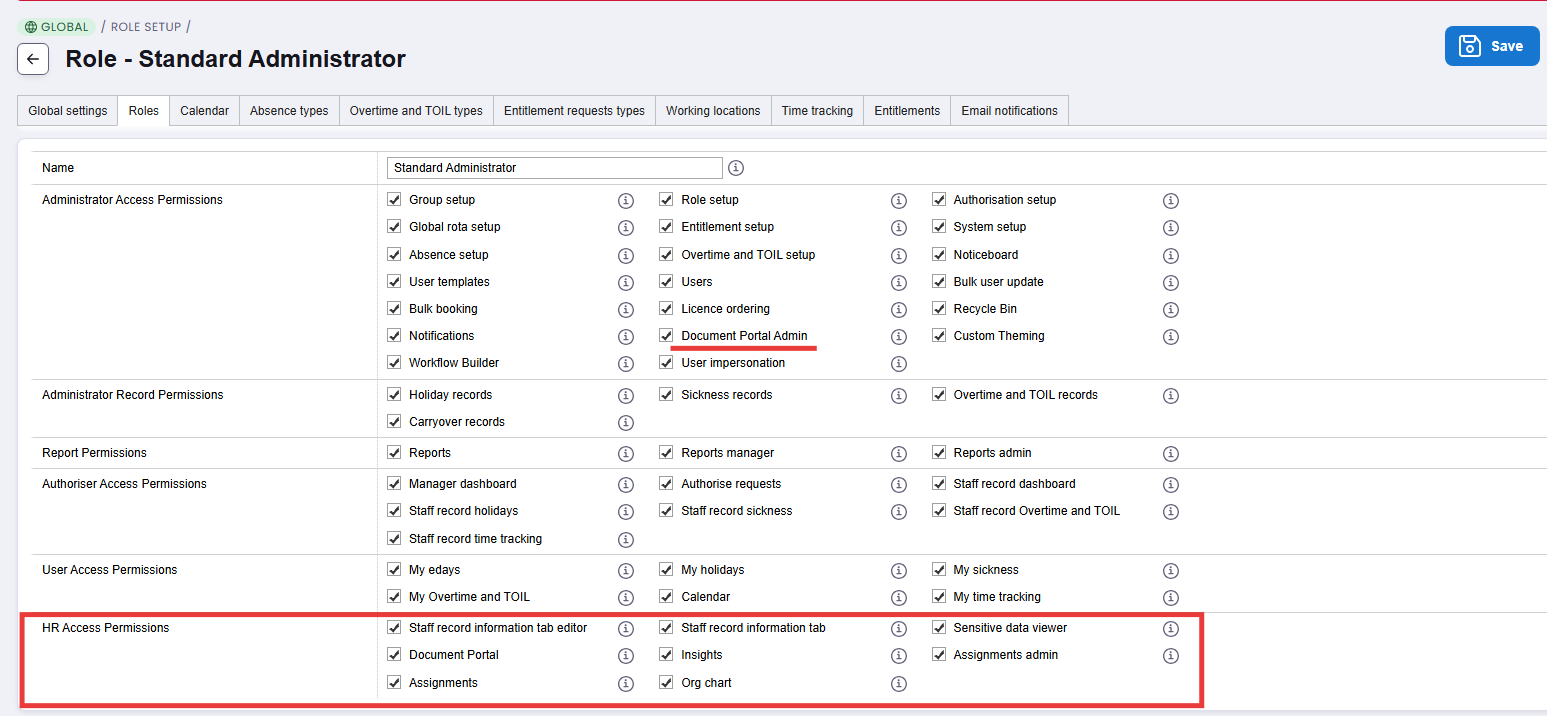
Document Portal Admin: This permission controls whether or not you can upload documents/links, and create new folders in the Document Portal.
Staff Record information tab: Allows you to access the information tab of a user included in your staff records view
Staff Record information tab editor: Allows you to edit the information tab of a user included in your staff records view
Sensitive data viewer: Allows you to see compensation and salary information via their user profile or reports. Users will be able to see their own salary and compensation details when viewing their own profile.
Document Portal: Grants access to the document portal (It's important for all users to have this ticked if you intend to use this feature - we would recommend updating the Standard User role.
Assignments admin: Enables the ability to create & edit assignments.
Assignments: This permission controls who can be sent assignments in edays.
Org Chart: Provides access to the org chart page.
For more information on roles, we have specific guides that explain in more detail.
Related Guides:
Roles - Role permissions overview | Roles - Updating a Role | Roles - Deleting a role | Roles - Assign or alter the roles applied to a user
How do I control "who" somebody should see?
Every user in your system can be assigned a User View. For more information on User Views, we have a comprehensive guide available on those. However, it's important to note which user views will impact Core HR and how those work alongside your permissions.
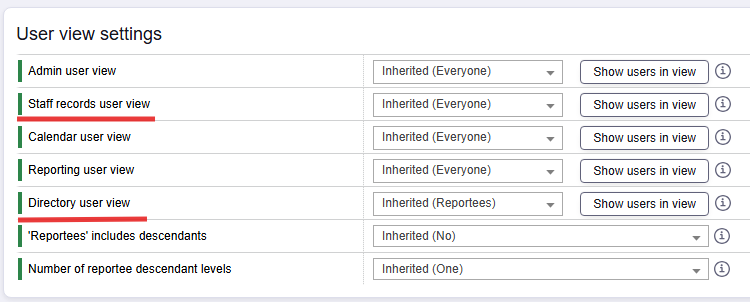
- Directory user view controls who you can see in the Search bar. If you want your teams to be able to see everybody here, you can assign the "Everyone" view to do this. When clicking My Team, this will specifically show you all users who are in your team. You can filter and adjust the My Team as you see fit.
The "My Team" link in the navigation header opens the user search modal with results pre-filtered to the user's team. If the system does not have a group type called "Team", this shortcut is not present.
This view does not control whether you can see personal data. You will only see their related groups, job titles and their working status (Working / Not working / Working part day / On leave / Leaver). - Staff records user view will control which profiles you can click into and see in edays, giving you the ability see their Personal Information tab, alongside general unplanned and planned absence records.
All personal information is visible, apart from Compensation and Salary data which is specifically controlled by the "sensitive data viewer" permission.
A standard default setup would have Staff records user views set to Reportees only. If you're a system owner or HR Administrator, typically your own view would be set to Everyone, or a specific custom user view. - Custom User Views are especially important if you need to create complex, specific user views to apply to your users. Here you can control if specific individuals are included in a view, or specific groups and templates to make bespoke views for certain people around the business.
How do I disable Core HR for specific users?
Every user in your system will have Core HR enabled by default. If you did want to disable Core HR for a specific user, or even a specific template/country, you can manually disable Core HR on the settings page.
- You can find this by going to Admin Panel > Users > Edit > User Settings and scroll down to the bottom of the page.
- On a template level, this is located by Admin Panel > Templates > Edit > Template Settings.

Need Support?
If you are unsure on making any of these changes, or would like some assistance on how to manage user views and roles around your Core HR setup, please do raise a ticket directly with our Support Team who will be happy to help you.