Overview:
As part of our Core HR module, you can use Workflow Builder to send forms and documents to employees automatically, at exactly the right point in their employee lifecycle - whether that’s an onboarding form on someone’s first day, a probation review two weeks before it’s due, or an exit interview in the week before they leave.
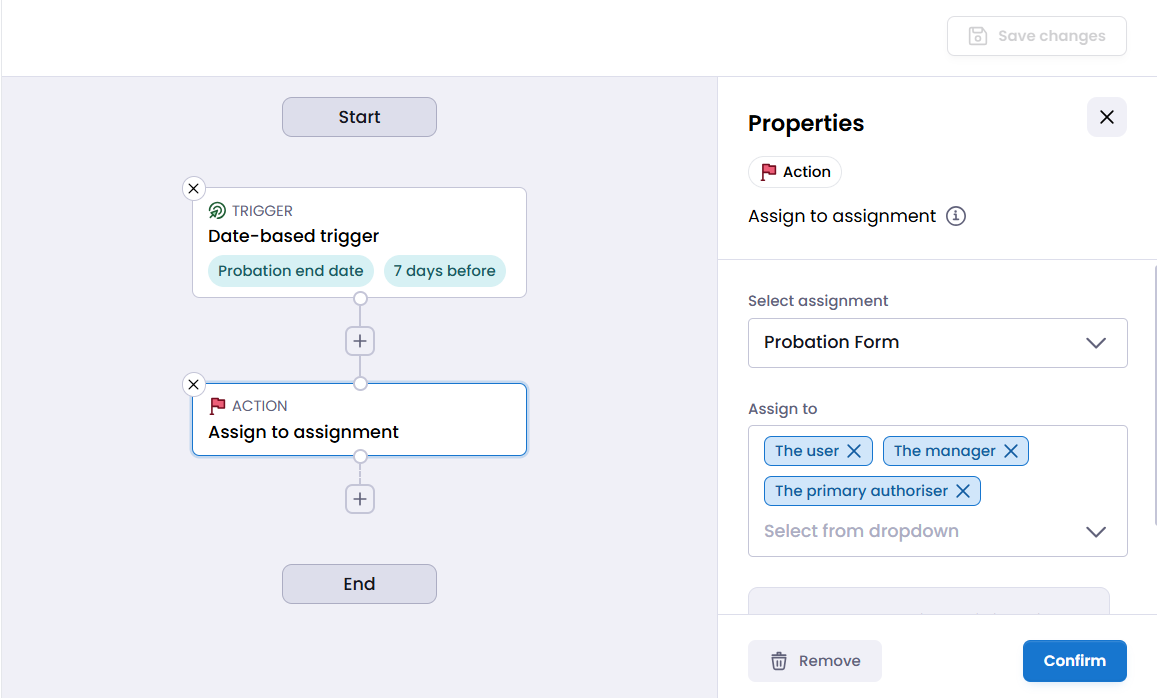
This guide focuses on the Assign to assignment action in Workflow Builder. It lets a workflow add employees, their manager or their primary authoriser to an assignment, such as a policy document to read or a form you’ve built in Form Builder. Pair it with the right trigger and your forms go out on time, every time, without anyone having to remember to send them.
Note: If you require more workflows, contact customersuccess@e-days.com to request Workflow Builder Pro. To send forms, you need Core HR enabled on your system.
Before you start:
A workflow can only send an assignment that already exists, so set up what you want to send first:
- Forms: build and publish your form in Form Builder, then create an assignment with the Form type and select your form. See our Form Builder guide for how to do this.
- Documents: create a document assignment as normal, e.g. your IT security policy or employee handbook.
- Keep it open: only active (not closed) assignments can be selected in a workflow.
How to send an assignment with a workflow?
- Under Admin Tools > click Workflow Builder.
- Click Add New Workflow in the top right corner.
- Choose a trigger for when the assignment should be sent, e.g. Employment start date or Probation end date.
- Add the Assign to assignment action.
- In Select assignment, choose the form or document you want to send.
- In Assign to, choose who should complete it - the user, their manager, their primary authoriser, or any combination.
- Optionally, add an email action to let people know, using the assignment email parameters below.
- Save your workflow.
For more information on how to use the Workflow Builder, there’s guides available here.
Action settings:
Setting | What it does | Options |
Select assignment | Chooses the form or document that will be assigned. | Any active (not closed) assignment. One per action. |
Assign to | Chooses who receives the assignment. | The user / The manager / The primary authoriser. Select as many as you need. |
Assignment email parameters
When a workflow includes an assignment action, two extra parameters are available to use in your email messages:
- Assignment name: the name of the form or document being sent
- Assignment due date: when it needs to be completed by
For example: “Hi, you’ve been sent [Assignment name] to complete by [Assignment due date]. You’ll find it on your edays dashboard.”
Our Example Workflows We Recommend:
Onboarding & New Starters
→ Example: New starter details form Use the Employment start date trigger set to ‘At time of’, and assign your Onboarding form to The user. On the morning of their first day, the new starter finds the form on their dashboard. With write back to profile, their answers update their record automatically. |
→ Example: IT security policy acknowledgement Use the Employment start date trigger set to ‘At time of’, and assign your IT security policy document to The user. Every new starter is asked to read and acknowledge it in their first week, without HR having to remember to send it. |
→ Example: Manager’s first-week check-in Use the Employment start date trigger with an ‘After’ timing of 7 days, and assign a short check-in form to The manager. It prompts the manager to record how the new starter’s first week went and flag any early concerns. |
Probation & Performance
→ Example: Probation review Use the Probation end date trigger with a ‘Before’ timing of 14 days, and assign your Probation review form to The manager. Add The user as well if you’d like the employee to complete their own self-assessment ahead of the meeting. |
→ Example: Annual performance review Use the Work anniversary trigger with a ‘Before’ timing of 14 days, and assign your Annual performance review form to The user. Each employee completes their self-evaluation every year in good time for their review conversation. |
Engagement & Surveys
→ Example: Monthly pulse survey Use the Recurring date trigger set to the 1st of the month, and assign a short anonymous survey to The user. Staff get a regular, quick way to share how they’re feeling, and you can track the results over time in Form Builder. |
→ Example: Quarterly staff survey Use the Specific date trigger, set to the first day of each quarter, and assign your Employee satisfaction form to The user. As Specific date triggers fire once, set up one workflow for each quarter’s date. |
→ Example: One-year check-in Use the Work anniversary trigger set to ‘At time of’, and assign a satisfaction form to The user. Hearing from people around their anniversary helps you spot what keeps them, and what might not. |
Offboarding & Leavers
→ Example: Exit interview Use the Leaving date trigger with a ‘Before’ timing of 7 days, and assign your Exit interview form to The user. Every leaver is asked for feedback before their last day, building a consistent picture of why people leave. |
→ Example: Leaver handover checklist Use the Leaving date trigger with a ‘Before’ timing of 14 days, and assign a handover form to The manager. It prompts them to capture key tasks, contacts and equipment returns before the employee goes. |
Pay & Role Changes
→ Example: New role acknowledgement Use the New job effective date trigger set to ‘At time of’, and assign the new job description or any role-specific policy to The user. The employee acknowledges their new responsibilities on the morning the change takes effect. |
Things to know:
- Set up the assignment first: a workflow can only send an existing assignment. For forms, the form must be published and set up as a Form assignment.
- Closed assignments can’t be selected: only active assignments appear in the Select assignment list, so keep any assignment your workflows rely on open.
- Triggers fire in the morning: the assignment is sent on the morning of the calculated date. There is no option to specify an exact time of day.
- One-time triggers won’t repeat: to send a form every year, use a recurring trigger such as Work anniversary rather than Employment start date.
- Responses land in one place: forms completed through a workflow appear in Form Builder alongside all other responses, and in each employee’s Completed assignments folder.
Further Reading:
For more on forms and workflows in edays, these guides may be helpful. Or if you need assistance configuring any of these, please contact customersuccess@e-days.com.