Overview
Form Builder lets you create your own custom forms in edays and send them to employees to complete, so you can collect the information you need without chasing paper forms, emails or spreadsheets.
Whether it’s gathering a new starter’s details, running a probation review, collecting feedback in a staff survey or capturing an exit interview, you can build the form once, send it to the right people and see every response in one place. You can start from a blank form or from one of our ready-made templates, and once a form is published you can view, filter and export the responses.
This guide covers how to create and publish a form, how to send it to employees, how to review and export responses, and some examples of how HR teams can use it.
Note: Form Builder is part of Core HR. If you’d like to add Core HR to your account, or need more workflows with Workflow Builder Pro, contact customersuccess@e-days.com.
Finding Form Builder
Form Builder sits in the Admin Panel, under Form Builder. The overview page gives you a quick picture of all your forms:
- Summary tab: how many forms are published and unpublished, total responses, and how many form assignments are ongoing
- Forms table: every form, with its status, response type and number of responses
How to create a new form
- In the Admin Panel, click Form Builder.
- Click to create a new form.
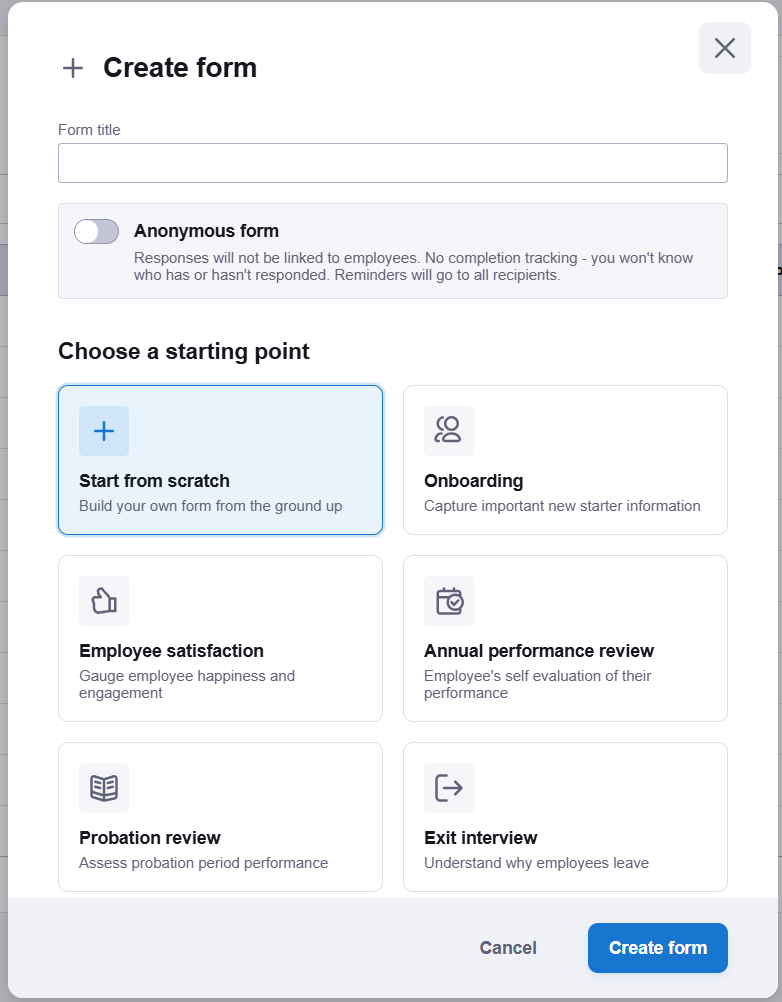
- Choose to start from scratch or pick one of the templates below.
- Add, edit or remove questions until the form asks for exactly what you need.
- Publish the form. Only published forms can be sent to employees.
Templates
Templates give you a head start. You can edit any of them to suit your organisation’s own processes and tone.
Template | What it covers |
|---|---|
Onboarding | New starter contact details, IT and equipment requests, and health and wellbeing. |
Employee satisfaction | Overall satisfaction, working environment, management and more. |
Annual performance review | The employee’s self-evaluation of their objectives and achievements. |
Probation review | Rates whether probation expectations were exceeded or not met. |
Exit interview | Reasons for leaving, role and experience, and feedback. |
Question types
Form Builder supports 15 question types, including dropdowns, free text and signatures, so you can ask for anything from a simple yes/no to a detailed written answer.
Note: Signature questions must be drawn by the person completing the form. Adopted (typed or saved) signatures aren’t supported.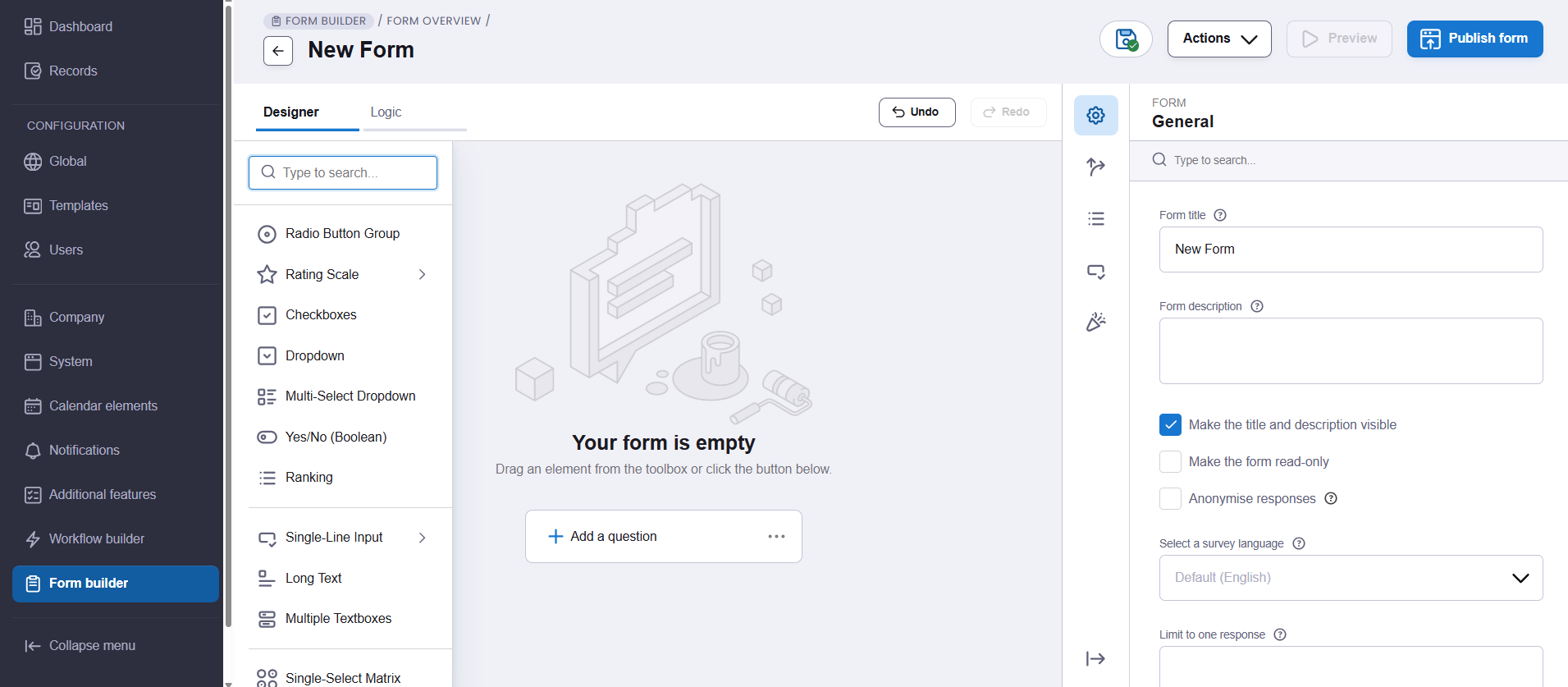
Features worth knowing about
- Write back to profile: some question types can update the employee’s edays profile directly with their answer. This is ideal for onboarding, as new starters fill in their own details and you don’t have to re-key them.
- Form logic: questions can show or hide depending on earlier answers. For example, choosing “Option B” in question 5 can open up a new set of questions, so people only see what’s relevant to them.
- Anonymous forms: respondents’ names are hidden, so people can answer more openly. This works well for staff surveys and feedback.
- Completed assignments: each response is saved to the employee’s Completed assignments folder, so you can review it, along with their signature, from their record. By default, this will be hidden to managers and users.
Example forms we recommend
Joiners & onboarding
→ Example: New starter details |
|---|
Start from the Onboarding template and use write back to profile on questions such as address and emergency contact. Assign it to new starters before their first day. Their answers update their edays profile automatically, so HR no longer copies details from a paper form into the system. |
→ Example: IT and equipment requests |
|---|
Add a question such as “Do you need a laptop or other equipment?” and use form logic so that answering “Yes” opens follow-up questions about what’s needed. New starters who don’t need anything skip straight past, and you can export the responses to share with IT. |
→ Example: Policy and handbook acknowledgement |
|---|
Build a short form that links to your employee handbook or a new policy and ends with a signature question. Assign it to everyone the policy applies to. Each signed response is saved to the employee’s Completed assignments folder, giving you a clear record of who has read and agreed to it. |
Performance & probation
→ Example: Probation review |
|---|
Use the Probation review template and assign it to employees approaching the end of probation. If someone answers that expectations were “not met”, use form logic to open questions about support and next steps. The completed review sits in their Completed assignments folder, ready for the probation meeting. |
→ Example: Annual review self-evaluation |
|---|
Assign the Annual performance review template a couple of weeks before review meetings. Employees reflect on their objectives and achievements in their own words, and managers go into the conversation with that input already in hand. |
Engagement & feedback
→ Example: Anonymous staff survey |
|---|
Start from the Employee satisfaction template and make the form anonymous. Assign it to the whole company and use the summary view to see the overall picture. Because names are hidden, people are more likely to give honest feedback about their environment and management. |
→ Example: Comparing feedback across teams |
|---|
For a non-anonymous survey, filter the responses by group to compare how different departments or sites feel. You can also filter by age or gender to check whether particular groups are having a different experience, then export the results to share with the leadership team. |
Leavers
→ Example: Exit interview |
|---|
Assign the Exit interview template to employees once they’ve handed in their notice. Over time, the summary view shows common reasons for leaving, helping you spot patterns in retention and act on them. |
How to send a form to employees
Employees complete forms through assignments, in the same way as document assignments. Once assigned, the form appears on each employee’s dashboard as an assignment to complete. There are two ways to assign a form.
From Form Builder
- In the Form Builder overview, open the action menu for a published form.
- Select Assign.
- The Assignments page opens with the new assignment already set to the Form type and your form selected.
- Choose your recipients, edit the message text if needed, and save.
From the Assignments page
- Go to the Assignments page.
- Create a new assignment and choose the Form type.
- Select the published form you want to send.
- Choose your recipients, edit the message text if needed, and save.
Tip: You can filter the assignment list by type (Forms or Documents) to find what you’re looking for quickly.
From Workflow Builder (Automating & Onboarding Flows)
To create automated workflows for your forms, you should read the following guide on Sending forms & assignments in Workflow Builder.
- Go to the Workflow Builder.
- Create a new trigger, and then under Actions select Assign to assignment.
- Here you can select the Published Form & Assignment you have created previously, such as New Starter Form.
- Choose your recipients for the form.
Viewing and exporting responses
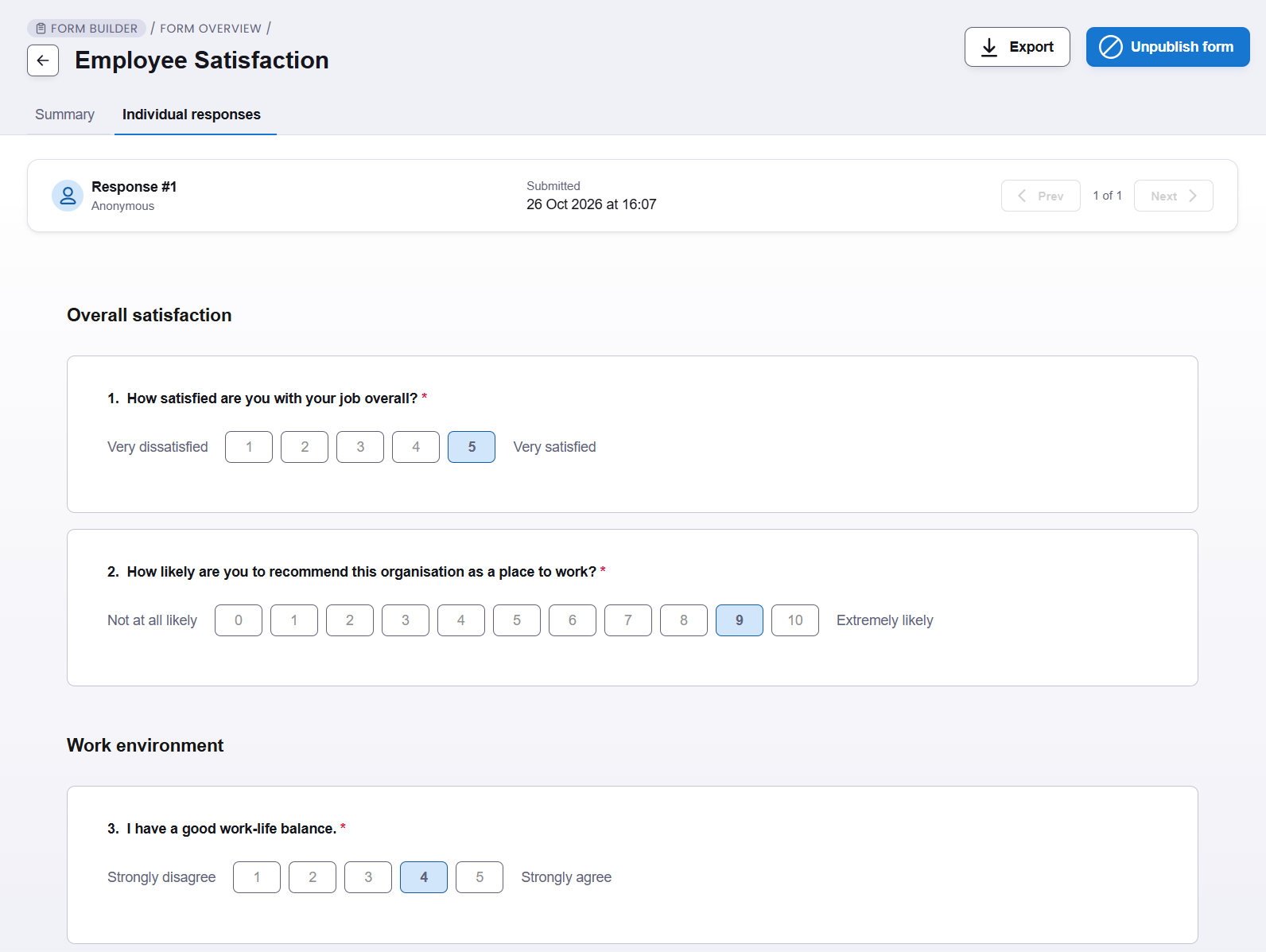
Click any form with responses to see the number of questions, total responses, responses in the last 7 days and when the last response came in.
- Summary view: the default view, showing an overview of all answers to each question
- Individual response view: each employee’s answers to every question, one person at a time
- Filters: both views can be filtered by group, age or gender (filters are hidden on anonymous forms)
- Export: download responses as CSV, XLSX or PDF
An export is a snapshot of all responses at the time you download it, and shows whether each employee signed the form.
Things to know
- Only published forms can be assigned: make sure your form is published before you try to send it.
- Signatures must be drawn: employees need to draw their signature on the form; adopted signatures aren’t supported.
- Anonymous means anonymous: names and filters are hidden on anonymous forms, so you won’t be able to follow up with individuals. Use a named form if you need to.
- Exports are a snapshot: responses submitted after you export won’t appear, so download a fresh copy when you need the latest picture.
- Think about sensitive information: some forms, such as onboarding health and wellbeing questions, may collect special category data. Only ask for what you need, and check that the people who can view and export responses are the right people under your data protection policy.
Further reading
For more on Core HR and assignments in edays, these guides may be useful.