Overview
Timesheet Rounding lets you automatically adjust your users’ clocked times to rounder values, or to the start and end of their rota, so you only pay for the time that was actually worked. It's primarily used if you have employees that clock in and out.
Most businesses use it to absorb the small gaps that build up around clocking. Someone clocks in at the door, walks to their desk, makes a cup of tea and then starts work – without rounding, those few minutes either side of every shift add up to overtime you never intended to pay. Whether you want to tidy times to the nearest 15 minutes, ignore early clock-ins before a shift starts, or close short gaps between periods, this guide shows you how to set it up.
This guide covers setting up rounding rule sets, assigning them to your users, how the rounding is calculated, and where rounded times show in timesheets and reports.
Note: Rounding defaults to No rounding, so nothing changes for your users until you create a rule set and assign it.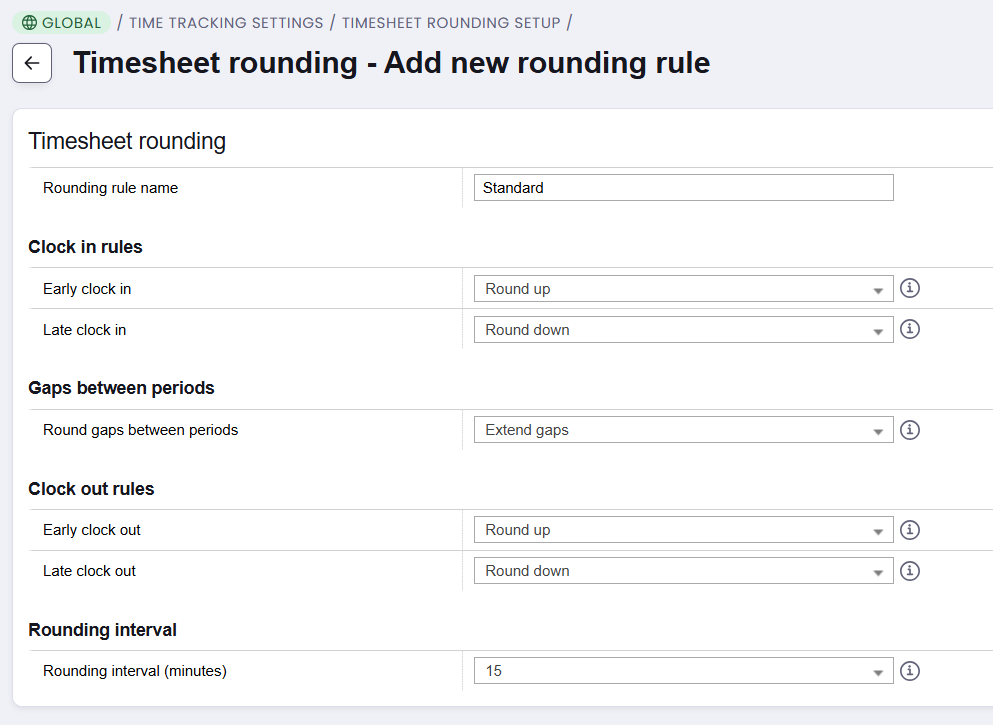
What a rounding rule set controls
A rounding rule set is a saved group of rounding settings. Each rule set lets you decide how to handle five situations:
Situation | What it covers |
|---|---|
Early clock-in | A user clocks in before their rota start time. |
Late clock-in | A user clocks in after their rota start time. |
Early clock-out | A user clocks out before their rota end time. |
Late clock-out | A user clocks out after their rota end time. |
Gaps between periods | Time between one working period ending and the next starting, e.g. a short break. |
For each one, you can choose how the time is rounded:
- Round up – to the next interval
- Round down – to the previous interval
- Round to nearest – to whichever interval is closest
- Round to rota start or end – to the user’s rota boundary
Intervals can be 5, 10, 15, 20, 30 or 60 minutes.
How to create a rounding rule set
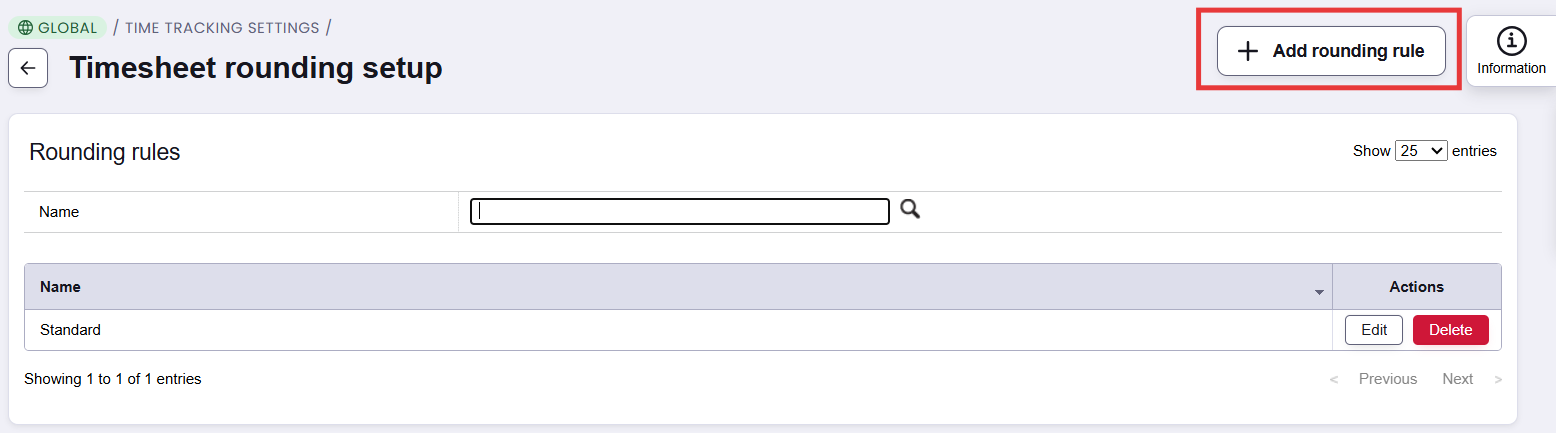
- Go to the global Time tracking admin page.
- Click Rounding rules at the top of the page.
- Create a new rule set and give it a clear name, e.g. “Warehouse – 15 min to rota”.
- For each situation (early/late clock-in, early/late clock-out, gaps between periods), choose the rounding method and set the overall interval.
- Save the rule set.

A rule set does nothing until it’s assigned – see the next section.
How to assign a rule set to your users
Choose which rule set applies using the Rounding rule set setting on the Time tracking page. Like other time tracking settings, it’s inheritable:
- Global – applies to everyone unless overridden
- Template – applies to everyone on that template, overriding global
- User – applies to one person, overriding template and global
This means you can set one rule set for the whole business, then use a different one for, say, your warehouse template or an individual on a different contract.
Updating users in bulk
When time tracking is enabled, Rounding rule set is available as a field on the User import/export page. Because a rule set bundles all your rounding settings together, you can apply a full set of rules to many users by updating just this one field.
Note: As with other inheritable settings, you can’t set a user back to inheriting via import. To do that, change the setting on the user’s record directly.
Example rounding rules we recommend
Clocking in
→ Example: Ignore early arrivals |
|---|
Set Early clock-in to round to the rota start. If a user’s rota starts at 9:00 and they clock in at 8:47 to grab a coffee, their time starts at 9:00. You only pay from when their shift begins. |
→ Example: Fair rounding for late arrivals |
|---|
Set Late clock-in to round to nearest with a 15 minute interval. A clock-in at 9:07 becomes 9:00, while 9:08 becomes 9:15. Small delays at the door are absorbed, but regular lateness still shows. |
Clocking out
→ Example: Stop paying for the walk to the car park |
|---|
Set Late clock-out to round to the rota end. If a user’s rota ends at 17:00 and they clock out at 17:08 after packing up, their time ends at 17:00. Genuine overtime should be agreed and recorded separately. |
→ Example: Count overtime in 15 minute blocks |
|---|
If you do pay for time after the rota ends, set Late clock-out to round down with a 15 minute interval instead. A clock-out at 17:08 becomes 17:00 and 17:22 becomes 17:15, so overtime is only counted in whole 15 minute blocks. |
Gaps and breaks
→ Example: Tidy up short breaks |
|---|
Set Gaps between periods to round to nearest with a 5 or 15 minute interval. A user who clocks out for lunch and back in a minute or two off the hour is treated as taking a clean break, rather than leaving odd minutes on their timesheet. |
Putting it together
→ Example: A full day with rota rounding |
|---|
A user’s rota is 9:00 to 17:00. They clock in at 8:47 and out at 17:08 – 8 hours 21 minutes recorded. With early clock-in and late clock-out both rounding to the rota, their rounded time is 9:00 to 17:00, a clean 8 hours. Over a 5 day week, that’s 1 hour 45 minutes of unintended overtime avoided for one person. |
How rounding is calculated
- Interval rounding – finds the nearest interval in the direction you’ve chosen. With Round up and a 5 minute interval, 9:05 stays at 9:05 but 9:06 becomes 9:10.
- Rota rounding – only applies to the start of the first period and the end of the last period in the day. Times in the middle of the day, such as breaks, aren’t snapped to the rota.
- Rounded times feed your calculations – accruals (including the monthly fixed amount method), overtime and break bands all use the rounded values. For example, if a user works 9 hours 58 minutes and rounding takes this to 10 hours, they now fall into your 10 hour break band.
Seeing rounded times
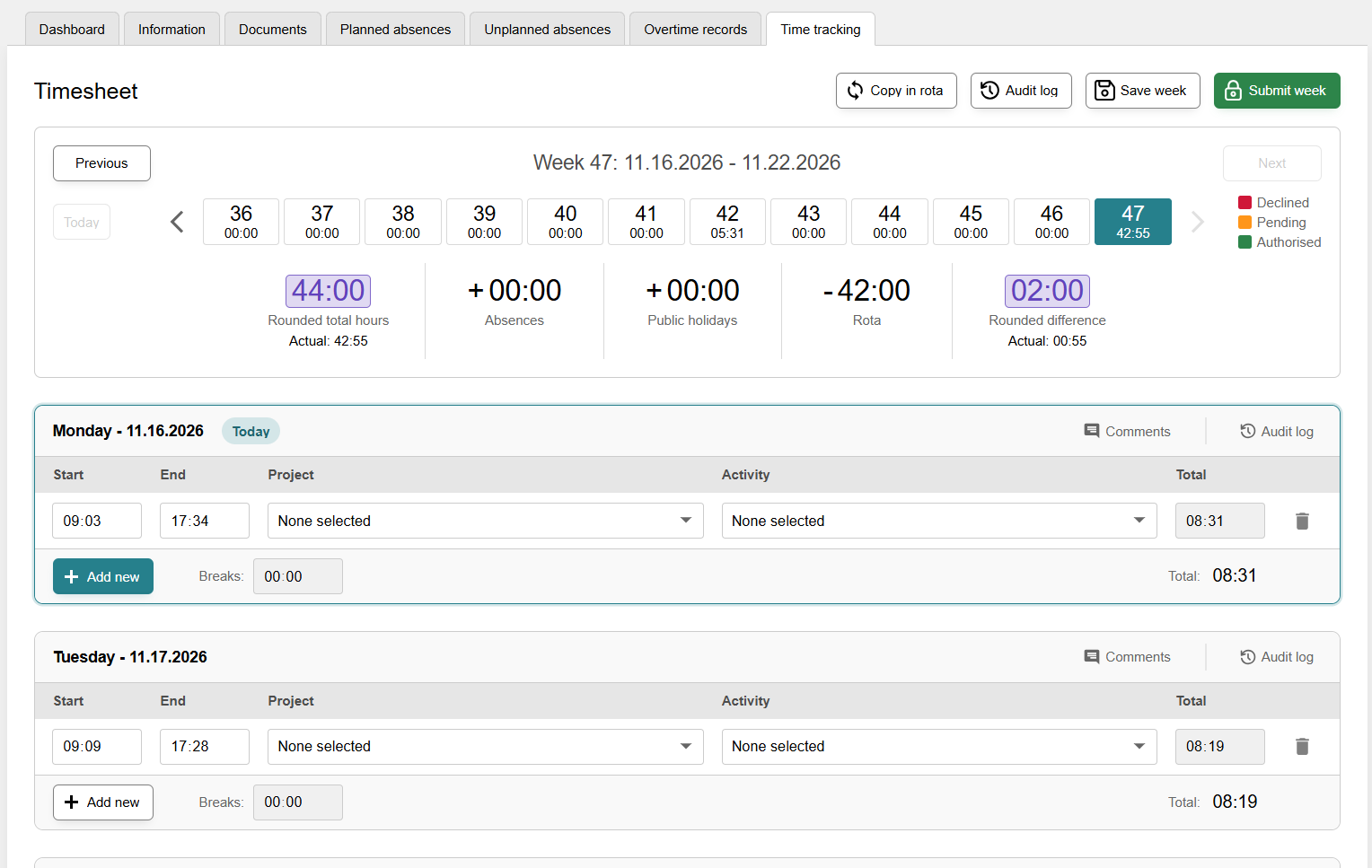
- Users – turn on Show rounded times on own timesheet to let users see their rounded times. Values that have changed show a Rounded label beside them. This setting is inheritable at global, template and user level.
- Authorisers – can always see rounded times when viewing another user’s timesheet in their staff record.
- Users with no authoriser – can always see their own rounded times.
Rounding in reports
The Time tracking working period, Time tracking by date and Time tracking timesheet reports now include an Adjusted values folder. This holds the rounded version of each time field. Where no rounding applies, the adjusted values match the recorded values.
To make the difference clear, existing time fields now end in (recorded), and a few have been renamed:
Old name | New name |
|---|---|
Excess | Difference (recorded) |
Recorded break hours | Break hours (recorded) |
Actual break time | Total break time (recorded) |
Note: Your existing saved reports and default reports are updated automatically, so you don’t need to rebuild them. If you export reports into payroll or another system, check any column mappings that rely on the old field names.
Things to know
- Your recorded times are kept – rounding never overwrites what the user actually clocked. Both values are available in reports.
- Rounding waits until submission – it isn’t applied to today or future days until the timesheet is submitted, or to incomplete periods (e.g. a user who is still clocked in).
- Some timesheets aren’t rounded – rounding doesn’t apply in Total Hours Only mode or on days with no rota.
- Rounding affects pay-related calculations – accruals, overtime and break bands all use rounded times, so review your rule sets with whoever runs payroll before you switch them on.
Further reading
For video reviews on setting up and using time tracking in edays, these Learning Centre videos may be useful.